Notifying The User With Toasts
Toasts, or “in-app notifications”, are useful to communicate a change in state from within the application, or to gather feedback from the user.
In this lesson, you will learn how to add a toast overlay to the text viewer application, and how to display a toast when opening a file.
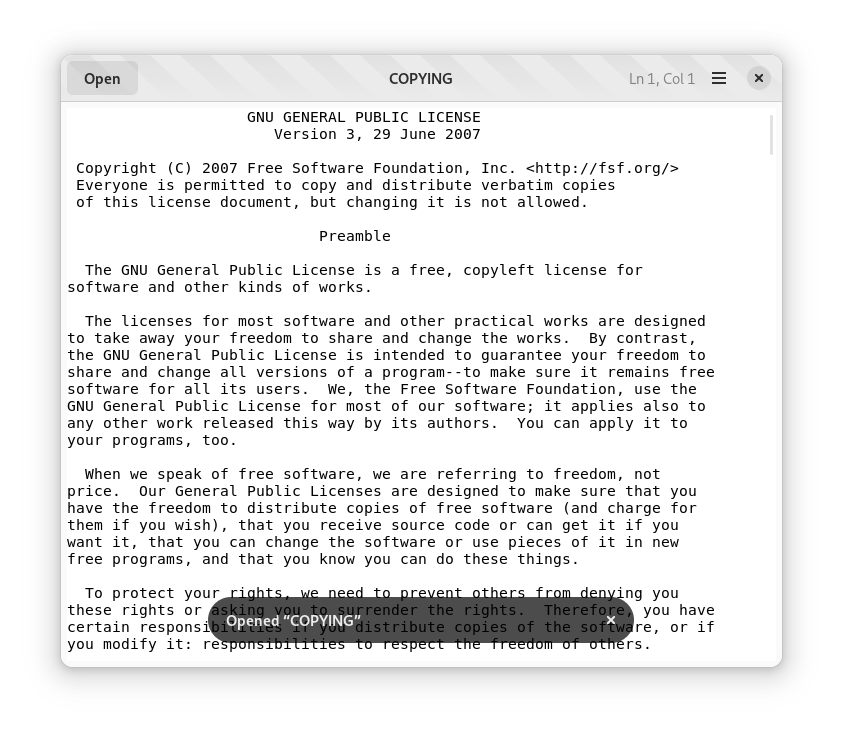
Add a toast overlay
Toasts are displayed by an overlay, which must contain the rest of the application’s content area.
Update the UI definition file
- Find the UI definition file for
Text::Viewer::Window - Find the definition for the
GtkScrolledWindowthat contains the main text area - Insert the
AdwToastOverlaywidget as the child of theText-Viewer-Windowand the parent of theGtkScrolledWindow, and use thetoast_overlayid
xml
<property name="content">
  <object class="AdwToastOverlay" id="toast_overlay">
    <property name="child">
      <object class="GtkScrolledWindow">
        <property name="hexpand">true</property>
        <property name="vexpand">true</property>
        <property name="margin-top">6</property>
        <property name="margin-bottom">6</property>
        <property name="margin-start">6</property>
        <property name="margin-end">6</property>
        <property name="child">
          <object class="GtkTextView" id="main_text_view">
            <property name="monospace">true</property>
          </object>
        </property>
      </object>
    </property>
  </object>
</property>
Bind the overlay in the source
Add the toast_overlay widget to the Text::Viewer::Window class
crystal
module Text::Viewer
  @[Gtk::UiTemplate(
    resource: "/com/example/TextViewer/text-viewer-window.ui",
    children: {
      "header_bar",
      "main_text_view",
      "open_button",
      "cursor_pos",
      "toast_overlay",
    }
  )]
  class Window < Adw::ApplicationWindow
    include Gtk::WidgetTemplate

    @header_bar = Adw::HeaderBar
    @main_text_view : Gtk::TextView
    @open_button : Gtk::Button
    @cursor_pos : Gtk::Label
    @toast_overlay : Adw::ToastOverlay

    @settings : Gio::Settings

    def initialize
      super()

      @settings = Gio::Settings.new("com.example.TextViewer")

      @header_bar = Adw::HeaderBar.cast(template_child("header_bar"))
      @main_text_view = Gtk::TextView.cast(template_child("main_text_view"))
      @open_button = Gtk::Button.cast(template_child("open_button"))
      @cursor_pos = Gtk::Label.cast(template_child("cursor_pos"))
      @toast_overlay = Adw::ToastOverlay.cast(template_child("toast_overlay"))
      #...
Show toasts
Toasts are especially useful for notifying the user that an asynchronous operation has terminated. Opening a file and saving it are two typical use cases for a notification.
Notify after file operations
- Find the
open_filemethod forText::Viewer::Window - Add a toast at the end of the method
crystal
    private def open_file(file : Gio::File?)
      return if file.nil?

      file_path = file.not_nil!.path.not_nil!
      File.open(file_path) do |file_io|
        self.title = File.basename(file_path, File.extname(file_path))

        # Retrieve the `Gtk::TextBuffer` instance that stores the
        # text displayed by the `Gtk::TextView` widget
        buffer = @main_text_view.buffer

        # Set the text using the contents of the file
        buffer.text = file_io.gets_to_end
        # Reposition the cursor so it's at the start of the text
        buffer.place_cursor(buffer.start_iter)

        # Show a toast for the successful loading
        @toast_overlay.add_toast(Adw::Toast.new("Opened “#{self.title}“"));
      end
end- Similarly for the
save_filemethod
crystal
    private def save_file(file : Gio::File?)
      return if file.nil?

      file_path = file.not_nil!.path.not_nil!
      File.open(file_path, "w") do |file_io|
        buffer = @main_text_view.buffer

        # Retrieve the iterator at the start of the buffer
        start_iter = buffer.start_iter

        # Retrieve the iterator at the end of the buffer
        end_iter = buffer.end_iter

        # Retrieve all the visible text between the two bounds
        text = buffer.text(start_iter, end_iter, false)
        return if text.size == 0

        file_io.print(text)

        @toast_overlay.add_toast(Adw::Toast.new("Saved as “#{File.basename(file_path, File.extname(file_path))}“"));
      end
    end
In this lesson you learned how to notify the user of a long running operation that either succeeded or failed using toasts.